

Cloud Functions
On this page
Note
This is a Preview feature.
SingleStore Cloud Functions is a serverless, cloud-based service that allows users to run code without managing compute resources.
Create and manage cloud functions using the Cloud Portal.
Publish Cloud Functions using the Cloud Portal
Create a Cloud Function
Cloud Functions can be created for shared notebooks only.
-
Using Cloud Functions in the left navigation
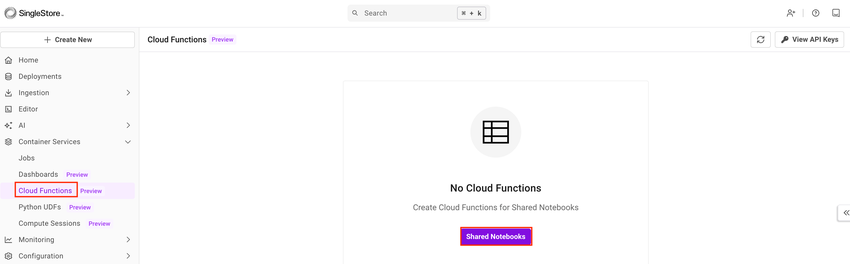
-
Using Shared Notebooks
-
Navigate to Editor > Shared.
-
Select a shared notebook.
-
Select Publish (on the top right).
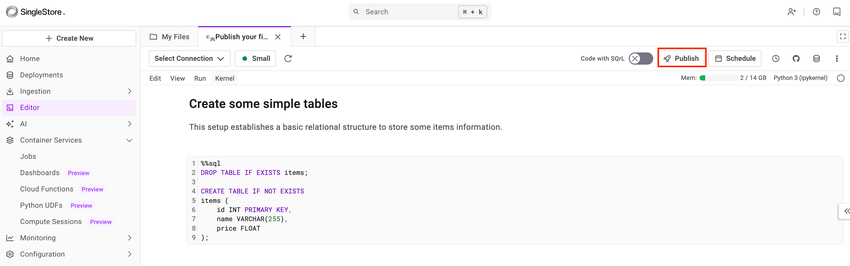
-
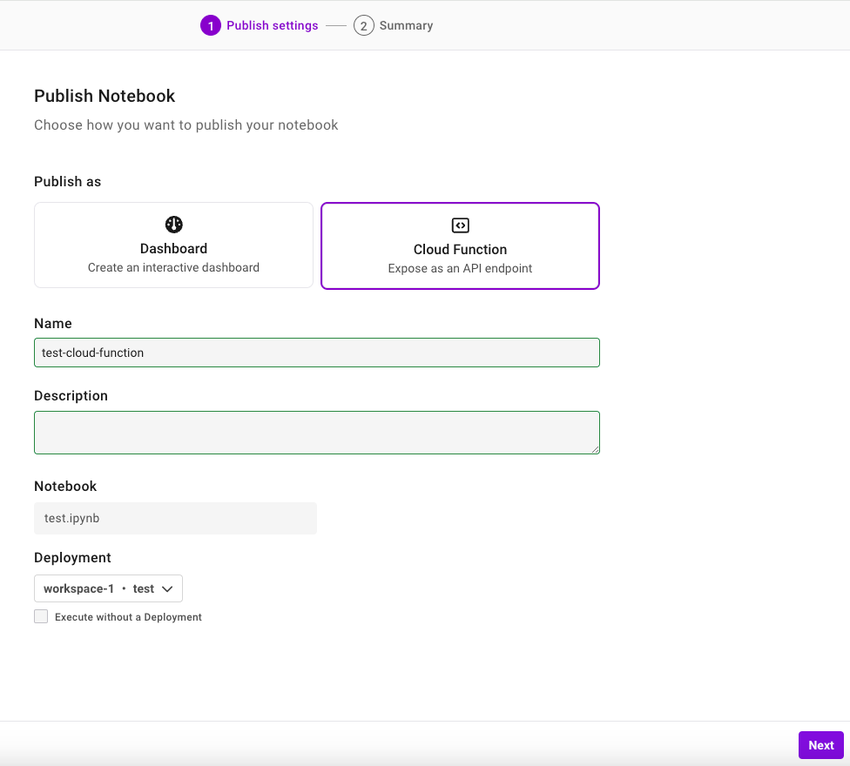
New Cloud Function
After selecting Publish, a new dialog box appears.
|
Publish Settings | |
|---|---|
|
Publish as |
Select Cloud Function. |
|
Name |
Enter a name for the cloud function. |
|
Description |
Enter the cloud function description. |
|
Notebook |
Select a shared notebook to publish as a cloud function. |
|
Deployment |
Select the SingleStore deployment (workspace) the notebook will connect to. Selecting a workspace allows connecting to the SingleStore databases referenced in the notebook natively. |
|
Runtime |
Select a runtime from the following:
Note This field is in preview. |
|
Region |
Select a region. |
|
Idle Timeout |
Select an idle timeout. Note This field is in preview. |
Select Next.
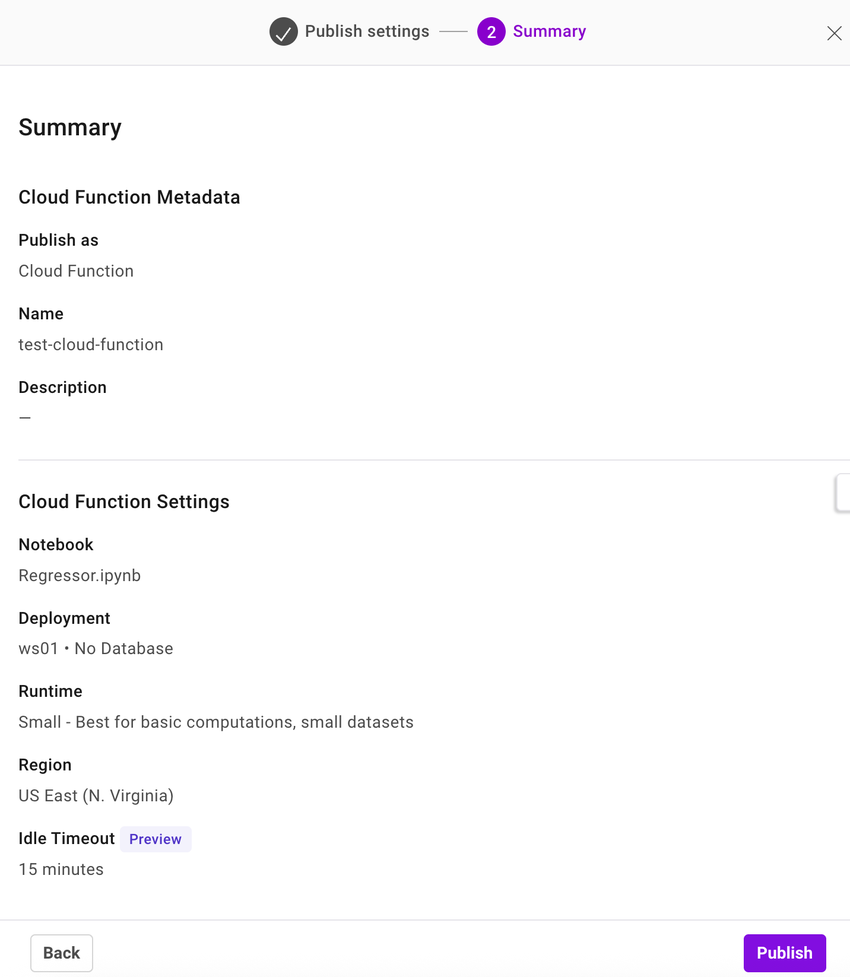
Select Publish to publish the notebook as a cloud function.
Manage an Existing Cloud Function
To view an existing cloud function, select Cloud Functions in the left navigation.
-
View
-
Update
-
Share
-
Delete
View an Existing Cloud Function
To view an existing cloud function, select the cloud function name under the Name column.
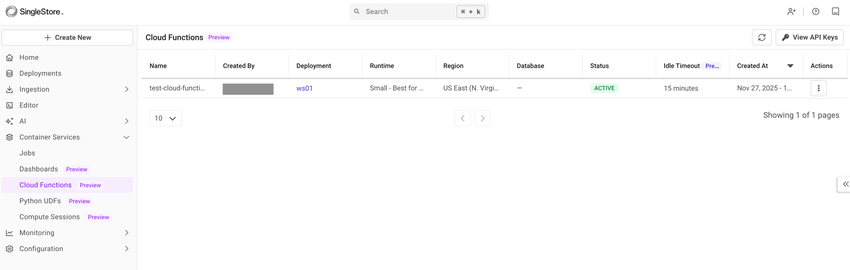
View the following details for each cloud function:
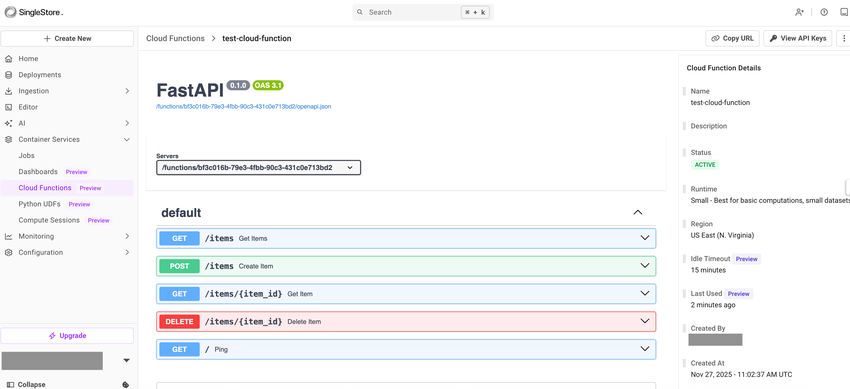
View the details of a cloud function on the right navigation pane.
-
Copy URL
-
View API Keys
-
View Live Logs
-
Share
-
Update
-
Delete
View API Keys
Refer to Aura App API Keys for related information.
View Live Logs
To view live logs of the selected cloud function, select View Live Logs from the ellipsis on the right side.
Update an Existing Cloud Function
To update an existing cloud function, select the ellipsis in the Actions column of the cloud function, and select Update.
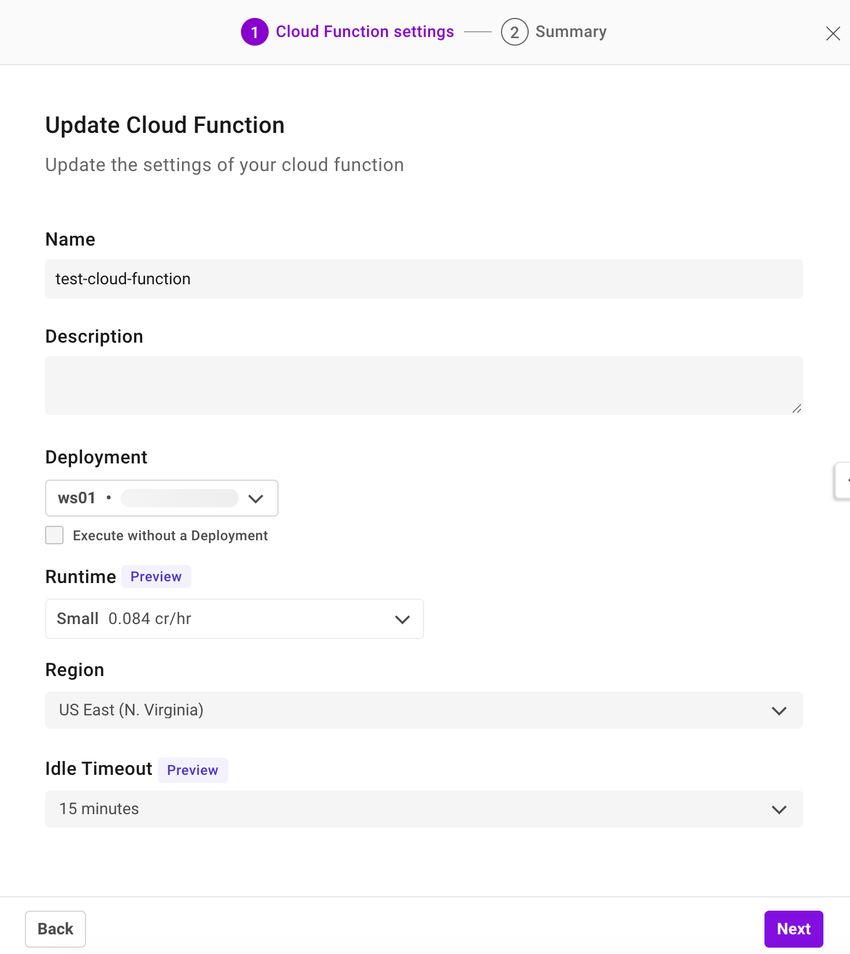
A cloud function can also be updated from a shared notebook.
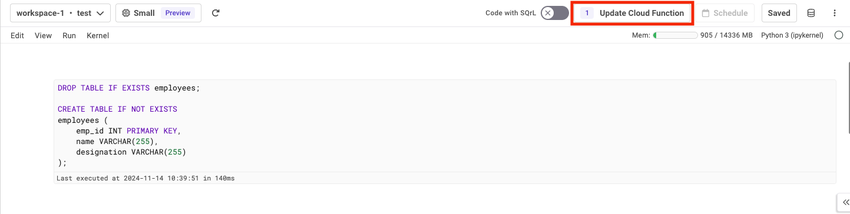
Select Update Cloud Function and select Update.
Share an Existing Cloud Function
To share an existing cloud function, select the ellipsis in the Actions column of the cloud function, and select Share.
Delete an Existing Cloud Function
To delete an existing cloud function, select the ellipsis in the Actions column of the cloud function, and select Delete.
Status of Cloud Functions
|
Status |
Description |
|---|---|
|
Initializing |
The notebook is creating or updating the cloud function. |
|
Active |
The notebook is successfully published as a cloud function. |
|
Failed |
The cloud function is not configured correctly. |
|
Error |
An error unrelated to the notebook code prevented the cloud function from initializing. |
Troubleshoot Cloud Functions
automatically saves a snapshot of the notebook for each execution that fails.
|
Error |
Solution |
|---|---|
|
Workspace Deleted |
Update the cloud function and select a deployment. |
|
Workspace Suspended |
Resume the workspace, or create a new cloud function with a different deployment. |
|
Database Detached |
Reattach the database with the right permissions or create a new cloud function with a different database. |
|
Notebook Deleted/Not Present |
Create a new cloud function with a different notebook. |
|
Internal Errors/Misc |
Reach out to SingleStore Support or use the chat feature in the Cloud Portal. |
Last modified: November 27, 2025